Key takeaways
- You don't need a separate app. Gboard (Android), the iPhone keyboard, SwiftKey and Samsung Keyboard all support Hindi for free.
- The easiest way for most people is transliteration: type "namaste" in English letters and get नमस्ते.
- Voice typing in Hindi is surprisingly accurate and is a lifesaver for elders who find small keys difficult.
Typing in Hindi on your phone feels intimidating at first. Matras, half letters and conjuncts can look complicated. The good news is that you don't actually need to learn a Hindi keyboard layout. Modern phone keyboards let you type in English letters and convert them to Hindi automatically, or even let you just speak. In this guide, we'll show you how to set up Hindi typing on Android and iPhone, which method suits whom, and a few handy tips to type faster.
Why I wrote this guide
Many people, especially our elders, want to write in Hindi but think it is difficult on a phone. It is actually very easy once the keyboard is set up. I wrote this guide so everyone can write in their own language.
Sheela Shivhare
Three ways to type Hindi
| Method | How it works | Best for |
|---|---|---|
| Transliteration | Type "kaise ho" in English letters, get कैसे हो | Most people, especially if you're used to typing Hinglish |
| Devanagari keyboard | Keys show Hindi letters directly | People who already know Hindi typing, or want full control |
| Voice typing | Speak in Hindi, the phone writes it | Elders, long messages, and anyone in a hurry |
Setting up Hindi on Android (Gboard)
Gboard comes pre-installed on most Android phones. If you use another keyboard, you can install Gboard free from the Play Store.
- Open any app where you can type, like WhatsApp, and tap the message box to bring up the keyboard.
- Tap the settings (gear) icon on the keyboard, then go to Languages.
- Tap Add keyboard and search for Hindi.
- Choose a layout. Pick the transliteration option (English letters that turn into Hindi) if you want to type Hinglish-style, or the Hindi layout if you want Devanagari keys.
- Tap Done. Now switch between English and Hindi using the globe key, or by long-pressing the spacebar.
Pro tip
With transliteration, Gboard shows suggestions above the keys as you type. If "kal" gives you the wrong word, tap the suggestion bar to pick the right one, like कल or काल. It learns your choices over time.
Setting up Hindi on iPhone
- Open Settings, then go to General, Keyboard, and Keyboards.
- Tap Add New Keyboard and select Hindi.
- Choose Devanagari or Transliteration (or both).
- Switch keyboards while typing by tapping the globe icon at the bottom of the keyboard.
Other keyboards that support Hindi
- Microsoft SwiftKey: supports Hindi and Hinglish, and is great at predicting mixed Hindi-English sentences.
- Samsung Keyboard: on Samsung phones, add Hindi from the keyboard's Languages and types settings.
Voice typing in Hindi
Voice typing is one of the most useful and least used phone features. Tap the microphone icon on Gboard or the iPhone keyboard (make sure Hindi is selected) and just speak. It handles everyday sentences really well.
Bonus
Set up Hindi voice typing on your parents' or grandparents' phones. Many elders find small keys frustrating, but they can send long, heartfelt messages by just speaking. It can genuinely change how often they stay in touch.
Checking your Hindi text
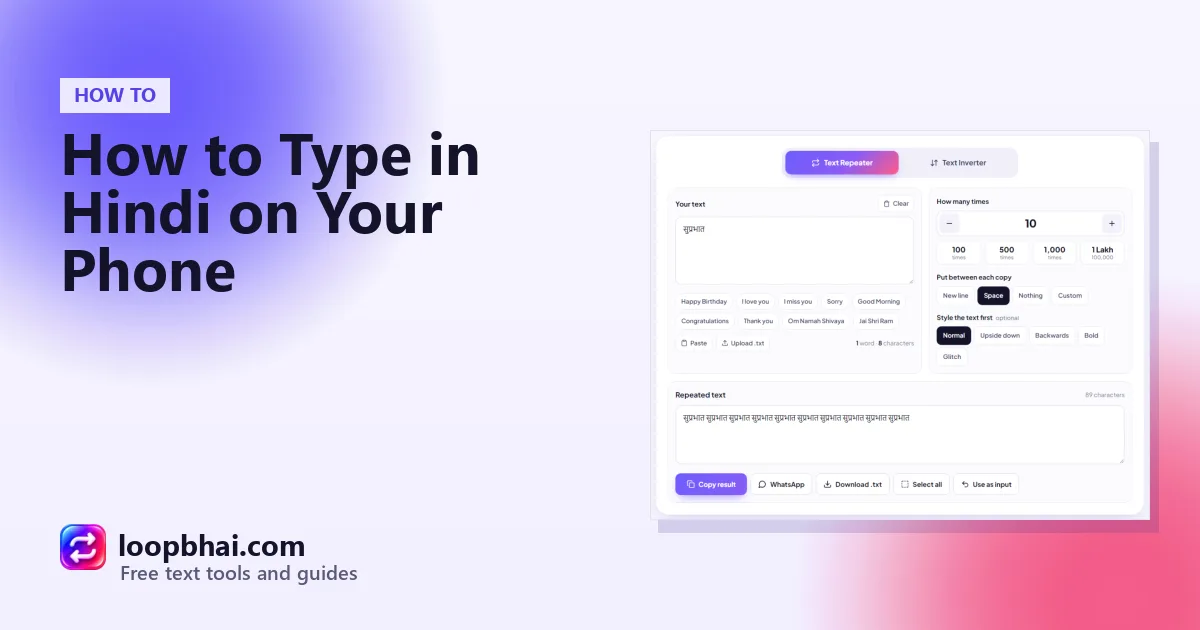
Once you've typed something in Hindi, you can paste it into the LoopBhai Text Repeater to repeat it, or simply to see its word and character count. Hindi works perfectly in both our tools.
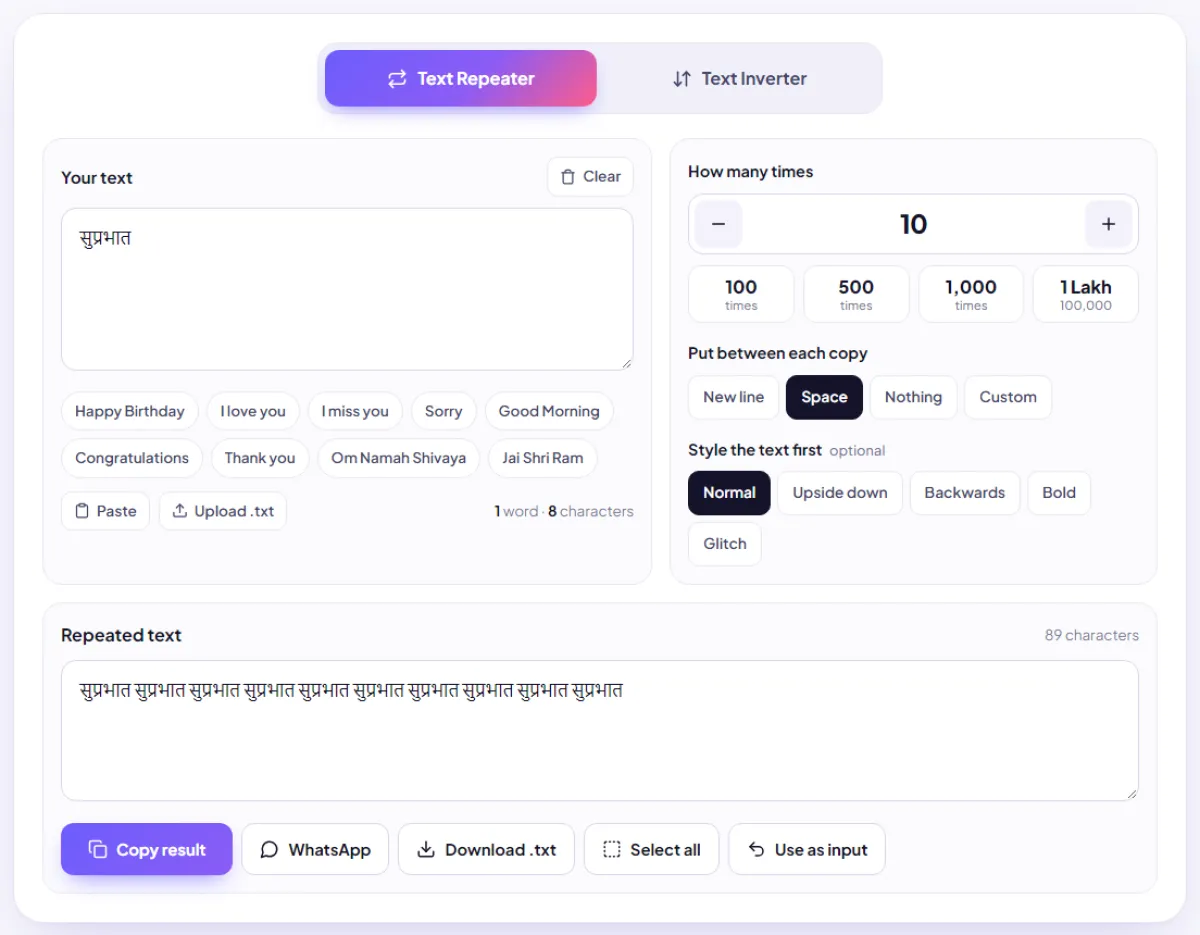
A small thing worth knowing: a Hindi word often has more "characters" than it looks like, because matras and the halant (्) are stored separately. नमस्ते looks like three or four letters but counts as 6 characters. That matters for things like SMS, where Hindi messages get only 70 characters. Our character limits guide explains more.
Typing Hindi on a computer
- Google Docs: Docs has built-in input tools for typing Hindi with English letters. Look for the language input option in the Tools menu.
- Windows: add Hindi from Settings, under Time and language, then Language. Windows offers a phonetic Hindi keyboard that works a lot like transliteration.
Common problems
Quick fixes
- Wrong word? Pick from the suggestion bar
- Keyboard stuck in Hindi? Tap the globe key
- Voice not working? Check Hindi is selected for voice
Avoid
- Random "Hindi keyboard" apps asking for lots of permissions
- Keyboards that want access to your contacts or messages
- Typing passwords in unfamiliar keyboard apps
Watch out
A keyboard app can see everything you type, including passwords and OTPs. Stick to trusted keyboards like Gboard, the iPhone keyboard, SwiftKey or your phone maker's own keyboard. Avoid unknown keyboard apps, however fancy their fonts look.
Frequently asked questions
How do I type in Hindi on WhatsApp?
Add Hindi to your phone's keyboard (Gboard on Android, or the iPhone keyboard), then switch to it using the globe key while typing in WhatsApp.
Can I type in English and get Hindi?
Yes. Choose the transliteration option when adding Hindi. Type "dhanyavaad" and you'll get धन्यवाद.
Is there a Hindi voice typing option?
Yes. Gboard and the iPhone keyboard both support Hindi voice typing. Just tap the microphone with Hindi selected.
Do I need to download an app to type Hindi?
Usually not. Most phones already have a keyboard that supports Hindi. You only need to add the language in settings.
Can I repeat Hindi text on LoopBhai?
Yes. Hindi and every other Indian script work perfectly in the Text Repeater and Text Inverter.