Key takeaways
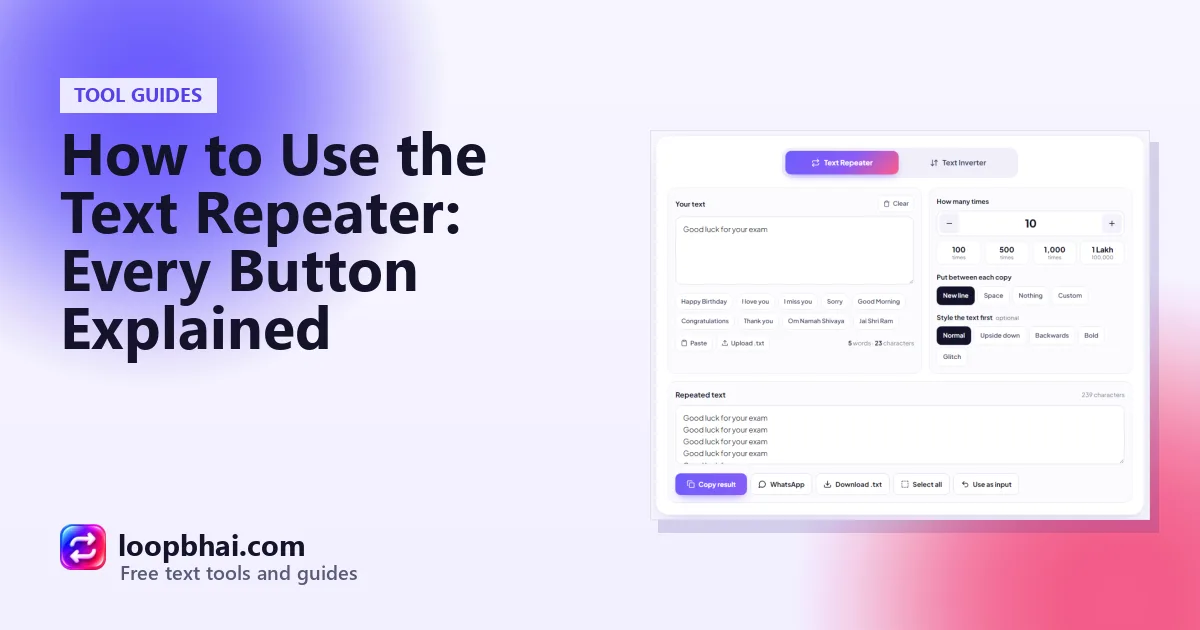
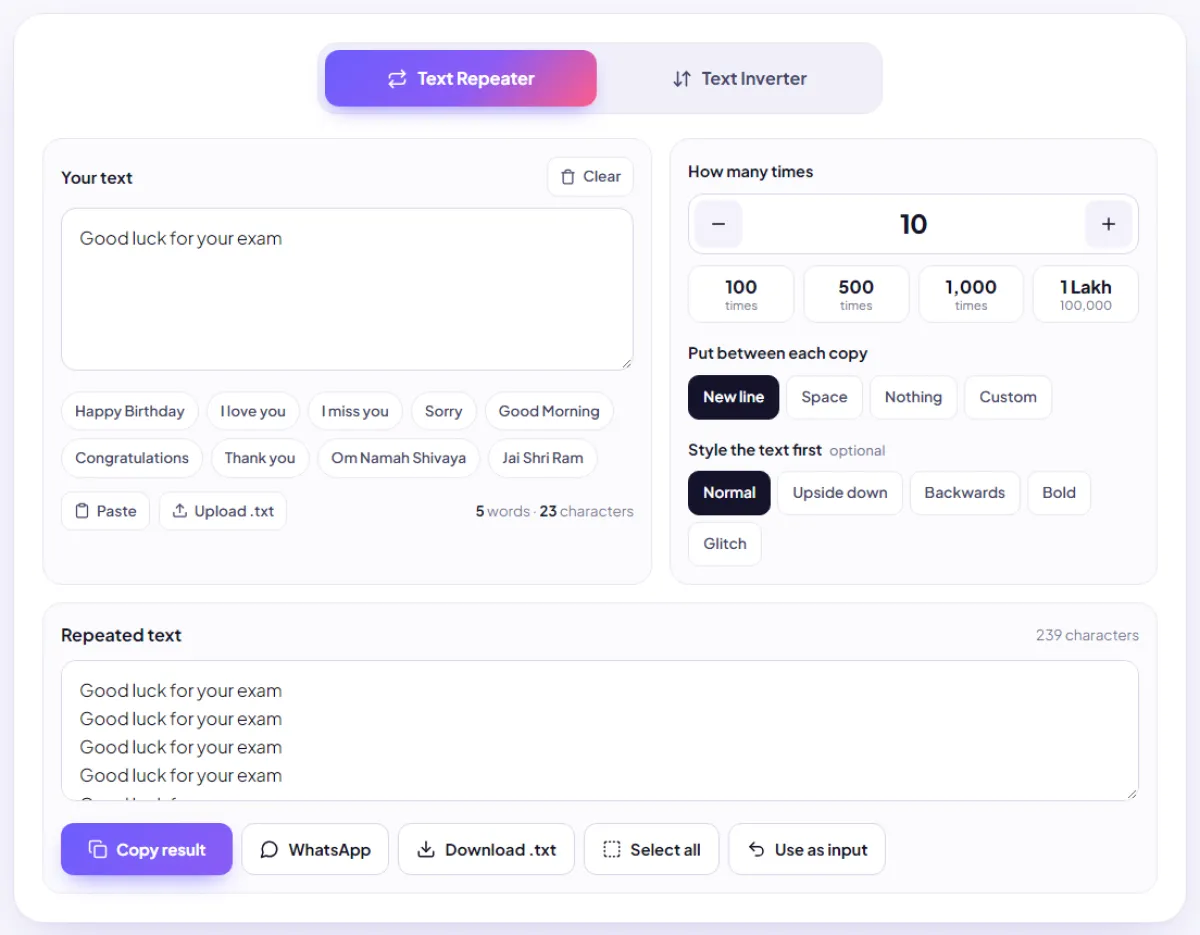
- The Text Repeater has three parts: your text on the left, the options on the right, and the result at the bottom.
- Every button has a purpose: separators shape how the result looks, styles change the text before repeating, and Download is your friend for huge results.
- Nothing you type ever leaves your phone or computer. Everything happens right in your browser.
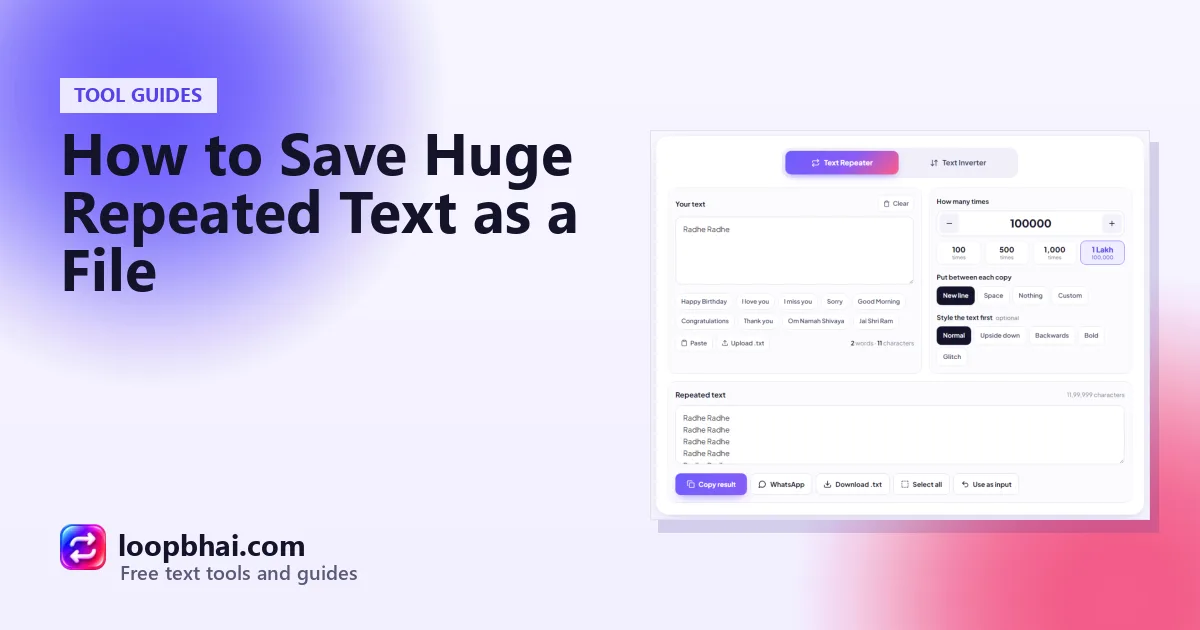
The LoopBhai Text Repeater looks simple, and it is. But there are a few hidden tricks in it that most people never discover, like using a whole sentence as a separator, styling text before repeating it, or sending a result back in as new input. This guide walks through every single part of the tool, button by button, so you can use it like a pro from day one.
Why I wrote this guide
When I made LoopBhai, I wanted even a first-time phone user to be able to use it easily. Still, every button deserves a clear explanation. I wrote this guide as a simple, step-by-step tour of the whole tool.
Sheela Shivhare
Part 1: Your text
The text box
Type or paste anything here: a word, a sentence, a paragraph, Hindi, Hinglish, symbols, numbers. The counter below the box shows how many words and characters you've typed, and it updates live.
Quick phrases
The buttons under the box, like "Happy Birthday", "Sorry" and "Om Namah Shivaya", fill the box in one tap. They're there because these are the things people repeat most often.
Paste and Upload .txt
- Paste pulls whatever is on your clipboard into the box. Your browser may ask for permission the first time.
- Upload .txt loads a text file from your phone or computer, up to 5 MB. Handy for long passages you've saved earlier.
Pro tip
The Clear button at the top right of the box wipes everything in one tap. Much faster than long-pressing and deleting on a phone.
Part 2: The options
How many times
Type any number from 1 to 1,00,00,000 (one crore), or use the minus and plus buttons to adjust by one. The four quick buttons set 100, 500, 1,000 or 1 lakh instantly.
Put between each copy (separators)
| Option | What it does | Example with "hi" x 3 |
|---|---|---|
| New line | Each copy on its own line | hi / hi / hi (on three lines) |
| Space | Copies in one line with spaces | hi hi hi |
| Nothing | Copies stuck together | hihihi |
| Custom | Anything you type in the box that appears | hi, hi, hi (with ", ") |
Bonus
The Custom separator can be a whole phrase. Type " and also " as the separator and "I love you" as the text, and you'll get "I love you and also I love you and also I love you". It's a fun way to make repeated messages feel less robotic.
Style the text first
These change your text before it's repeated, so every copy gets the style:
- Normal: no change.
- Upside down: flips the text 180 degrees, like
ollǝɥ. - Backwards: writes the letters in reverse, like "olleh".
- Bold: turns English letters and numbers into bold-looking characters that work in any app.
- Glitch: adds strike marks to some letters for a broken, distorted look.
Part 3: The result
The result box and the character count
The result updates as you type. The number above it shows the total characters in the final text, including all the separators. Check this before pasting into apps with limits, like Instagram captions (2,200) or SMS (160).
For very big results, the box only shows the first 5,000 characters, so your phone doesn't hang. Copy and Download always give you the full text.
The buttons, one by one
| Button | What it does |
|---|---|
| Copy result | Copies the complete result to your clipboard. For results above 5 crore characters, it asks before copying. |
| Opens WhatsApp with the text ready to send. Works best under about 4,000 characters. | |
| Download .txt | Saves the full result as a text file. The best option for really big results. |
| Select all | Highlights the visible result so you can copy it manually if your browser blocks copying. |
| Use as input | Moves the result back into the text box, so you can repeat or style it again. |
Three combos worth knowing
- Repeat a repeated line. Type "ha", repeat 5 times with Nothing (gives "hahahahaha"), tap Use as input, then repeat that 10 times with Space. You get ten big laughs in a row.
- Flipped and repeated. Choose Upside down under Style, set 21 copies and New line. Every copy arrives upside down.
- Bold heading plus normal text. Make a bold heading with count 1 and Bold style, copy it, then type the rest of your message normally in the app.
Good habits
- Check the character total before pasting
- Use Download for results over a lakh characters
- Send big repeats to one person, not groups
Avoid
- Copying crores of characters on an old phone
- Flooding group chats or comment sections
- Putting important info in Bold or Glitch style
Watch out
If Copy doesn't work, you're probably inside an in-app browser (like when you open a link from Instagram). Open loopbhai.com directly in Chrome or Safari, or use Select all or Download instead.
Frequently asked questions
What's the maximum number of times I can repeat text?
One crore (1,00,00,000). In practice, very long text at huge counts can run out of memory on phones, so use Download for big results.
Does the Text Repeater work offline?
Once the page has loaded, yes. Everything runs on your device, so you only need internet to open the page.
Can I repeat text with numbers like 1, 2, 3?
Not yet. The repeater makes identical copies. You can paste the result into Google Docs or Word and use a numbered list.
Why does my result say "preview shortened"?
Results over 5,000 characters only show the beginning in the box, to keep your phone smooth. Copy and Download still give you everything.
Is my text saved anywhere?
No. Nothing you type is uploaded to our server. Close the page and it's gone.